
Applications | PoE Clocks/Timers
Time is arguably the most critical aspect of efficiency in any company. While TimeMachines® does not (yet) have a magic wand to add hours to your already busy day, our PoE network clock displays can provide your team synchronized time and keep everyone on the same time schedule.
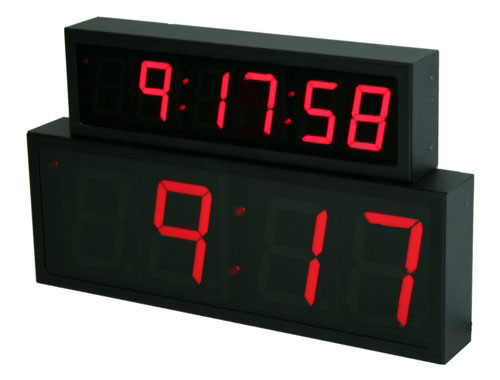
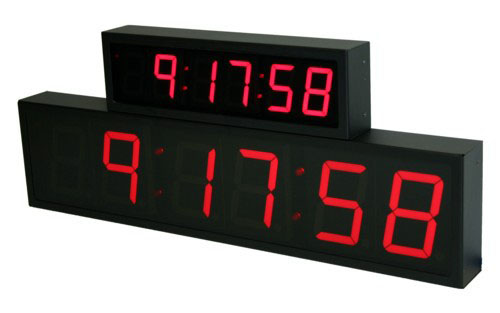
The TimeMachines® PoE digital wall clock displays use Network Time Protocol (NTP) to display your network's time. Every PoE network clock display is assigned a unique IP address within your network and can be configured to either an internal network time source, or an external, internet-based time server like NIST Internet Time Service. Whether your time is sourced internally or through the internet, all of these networked clocks will display synchronized time wherever they are located within your facility.
PoE NTP Clock Setup
These PoE NTP wall clocks are simple to set up – simply plug it in to a PoE enabled Ethernet network connection. Within a few moments, it will synchronize and display time.
Now you are ready to customize the clock settings for your location. Simply push the button on the back of your clock two times to get the DHCP served IP address for your clock – it will scroll across the display.
Then using a web browser (Chrome and Firefox are recommended), type in the IP address that was displayed as the URL. For example, http://10.10.0.100. This will take you to the web-based graphic user interface for configuring your clock.


Once you are logged into the configuration page, you can assign your preferred NTP time source (either within your network or outside), a secondary time source, any time zone customization that may be required, and your display format (12 hour or 24 hour). These are the basic configuration settings that set your time source and enable your time synchronization within the network. All displays on the network should be set to the same time source(s) on their configuration page to ensure synchronization.

There are additional configuration sections to customize daylight savings settings, as well as date and time display options.
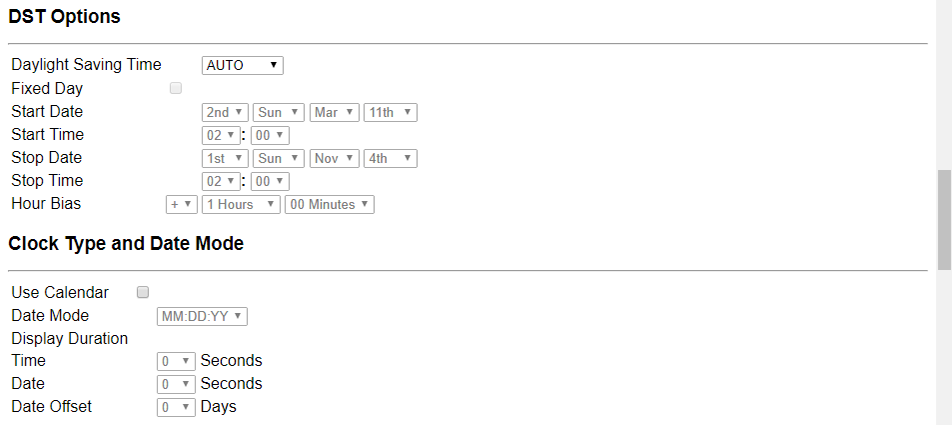
Within the individual configuration page, an individual display can be configured to be a count-up or count-down timer. The alarm capabilities of this device that can be utilized if a relay connector is added to connect the clock to a Piezo buzzer or bell. You can also change the device name (Conference Room #1, Classroom #104, Front Office, etc.), set the access password, and make brightness adjustments from this configuration page for an individual device.

Once that is all customized to your needs, you are all set. It's really just that simple!
More than just a clock – PoE Network Clock Timers
If you have multiple TimeMachines® NTP wall clocks on your network, you can use any of our free applications to monitor, adjust, or expand the functionality of your PoE and WiFi Network Clocks collectively from one spot rather than on each individual device's configuration page. You can customize some of your displays to become network clock timers when needed – individually or synchronized in various groups across the network. You can set one display to display only the date, while others are clocks or timers. These applications give you a broader control over the specifics of your entire network of TimeMachines® devices. Take a look at our TM-Manager software for Windows, or the TM-Timer Smartphone App which is available for both Android and iOS.
